![accrisoft_logo_med.png]](https://help.accrisoft.com/hs-fs/hubfs/accrisoft_logo_med.png?height=50&name=accrisoft_logo_med.png)
Accrisoft Freedom allows you to create Membership Dues Invoices to provide to Members whose renewals are upcoming. Once these Invoices are created as Draft Invoices, they can be adjusted to account for pricing changes and to allow for the addition of add-on items.
To learn how to adjust the Draft Invoices, see: Adjusting Membership Dues Draft Invoices for Upcoming Dues Renewals
To begin this process, you must create a Draft Invoice for members whose terms are expiring. Follow the steps outlined here to create the Draft Invoices.
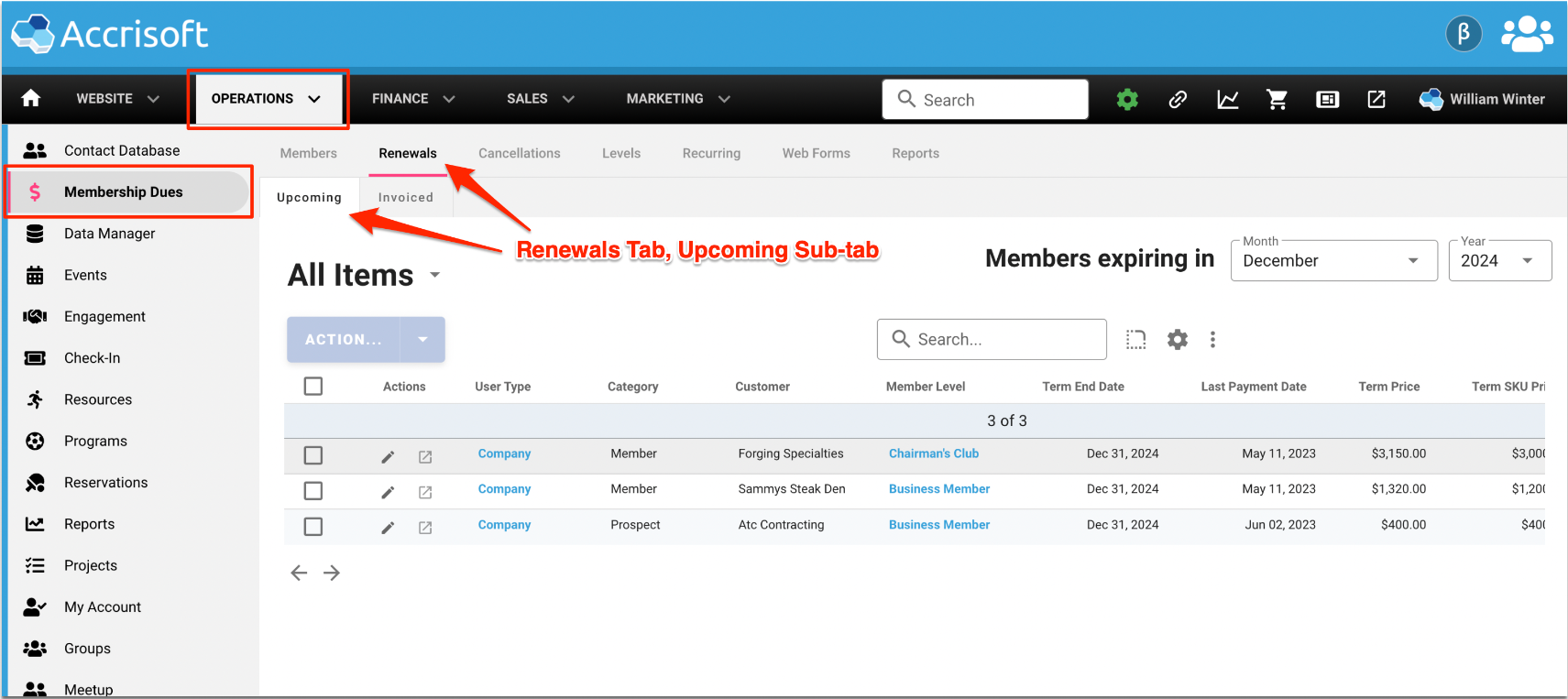
Begin by navigating to the Operations Application and select the Membership Dues Module. Select the Renewals tab, and ensure you are on the Upcoming sub-tab.
From there, select the date range of the Members expiring. Typically, organizations look to invoice their members several months before their current Dues Term expires.
In this example, we will invoice Members expiring in the selected month, which, for this example, is several months in the future.
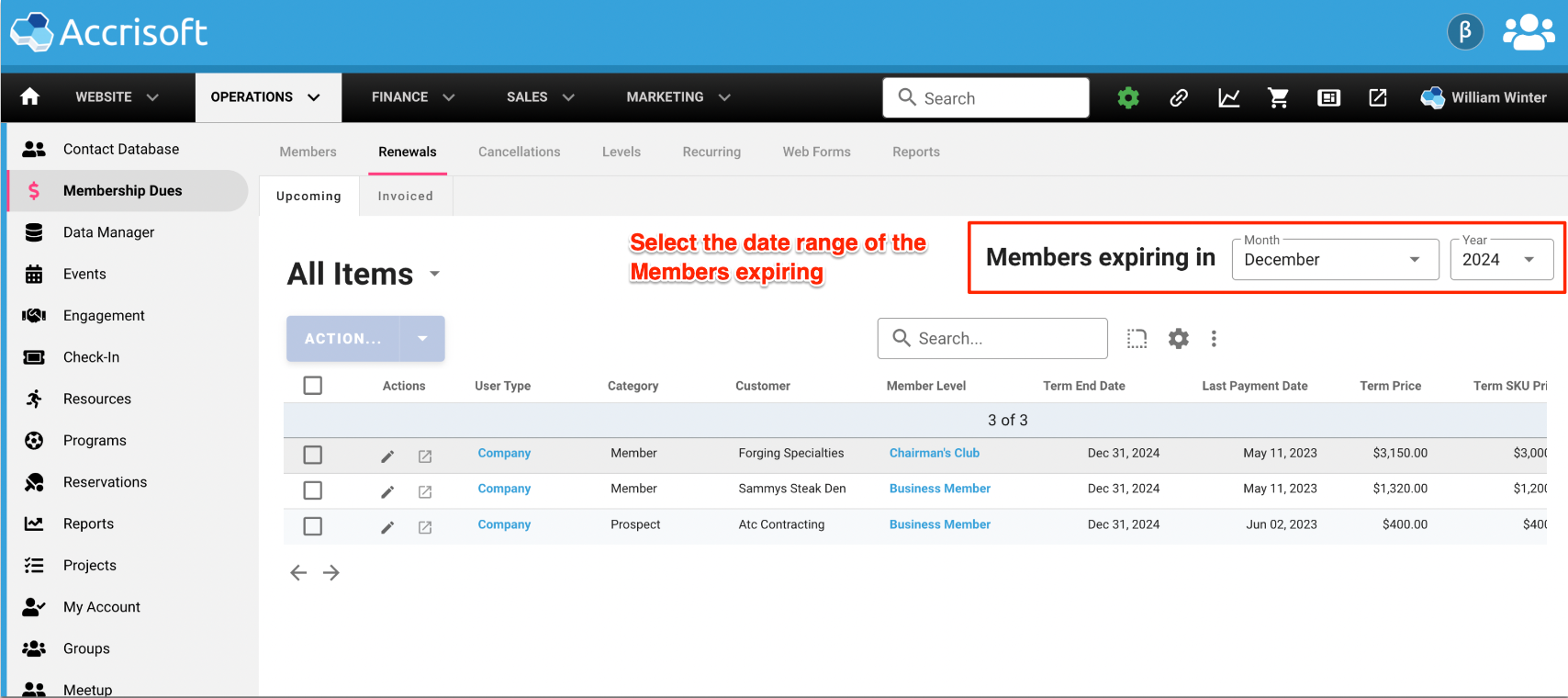
The system will present a list of members whose terms are expiring in that month.
From here, you can make changes in groups. In this example, we will work on the 'Standard Members' levels as a group (sometimes referred to as 'In Bulk' by Accrisoft users).
To affect multiple items at once, place a check mark in the box on the left side of the item.
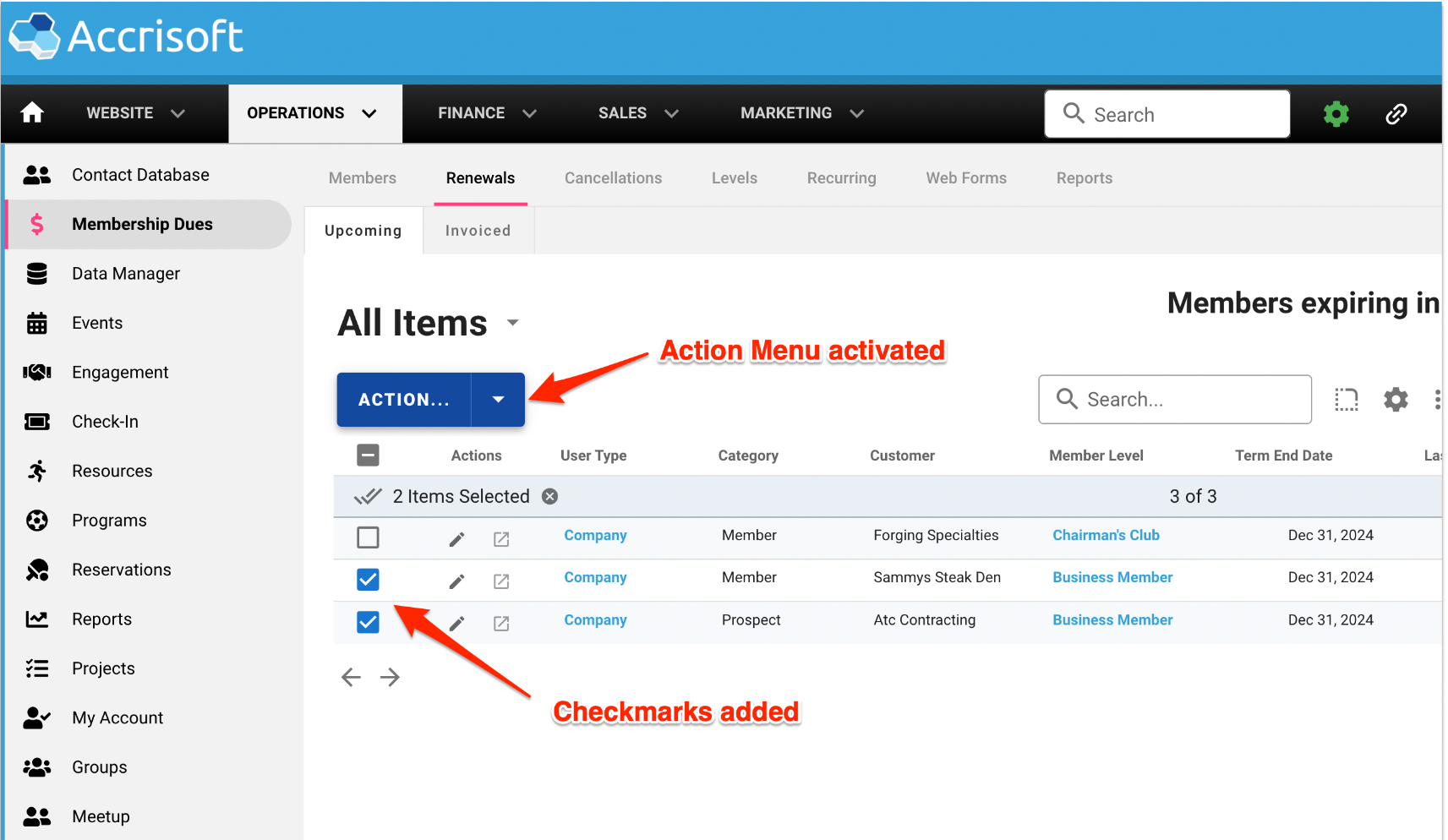
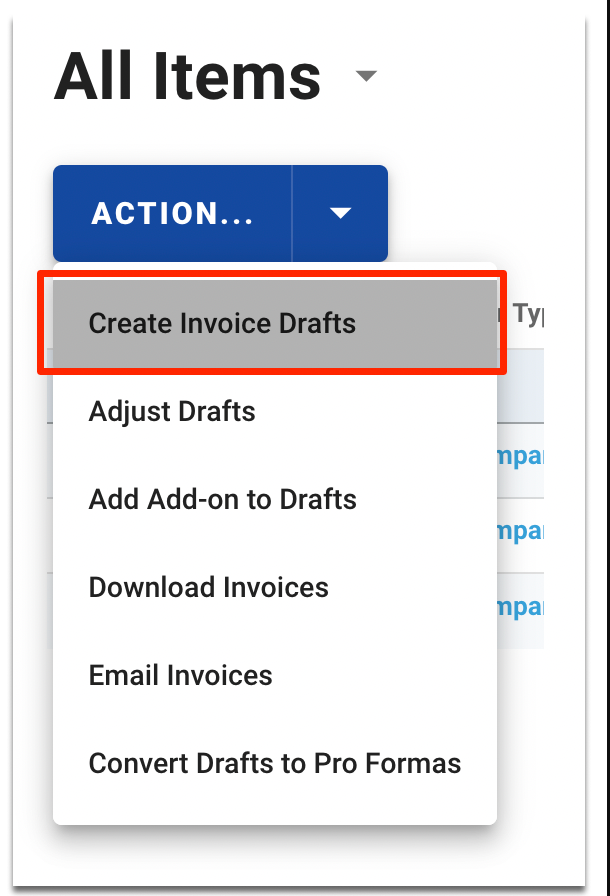
This will activate the blue 'Action...' menu. Click the 'Action...' menu to reveal the Action... menu options.
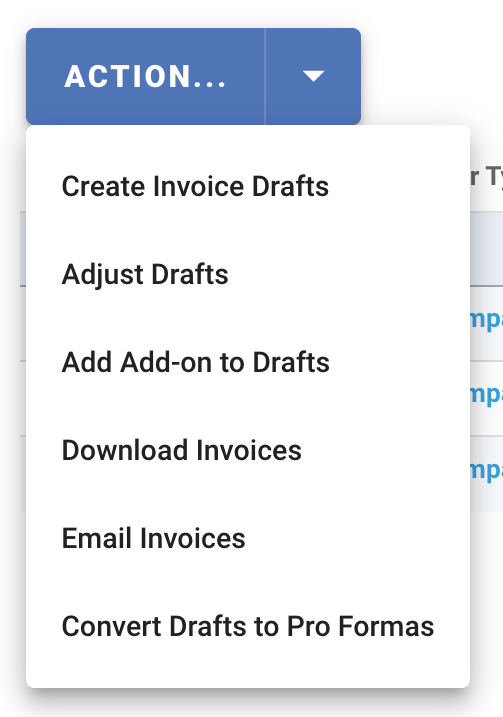
The options under the Action... menu are:
- Create Invoice Drafts
- Adjust Drafts
- Add Add-on to Drafts
- Download Invoices
- Email Invoices
- Convert Drafts to Pro Formas
Select the 'Create Invoice Drafts' option to have drafts created for the items you selected.
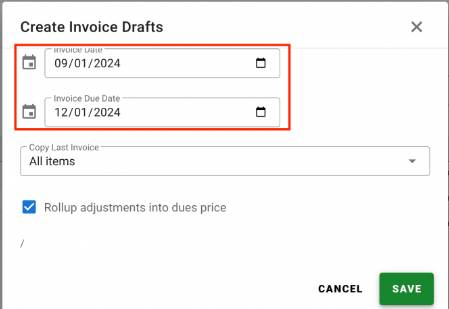
The 'Create Invoice Drafts' window will appear. Begin by setting the 'Invoice Date' and the 'Invoice Due Date' for the new Invoice.
Next, you will select which items from the prior Membership Dues invoice to to include in the new invoice. From the 'Copy Last Invoice' menu, there is the option to include 'All Items' or 'Dues Level Only' from the menu.
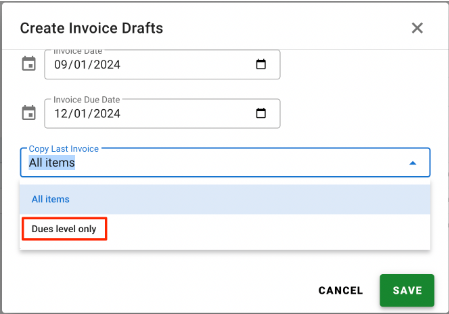
All Items: This option will bring in all the line items from the prior dues invoice into the new invoice.
Dues Level Only: This option will bring in only the Dues Level line item from the prior invoice into the new invoice.
In this example, we will select 'Dues Level Only' to have only the Dues Level on the invoice. We can add additional items later.
Next, decide if you want to roll up any adjustments into the new dues price.
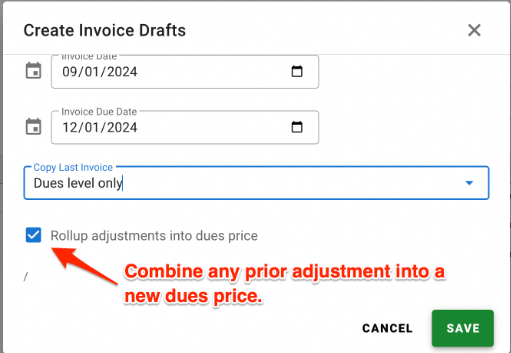
This will combine any prior adjustment, such as an annual increase line item, into a new dues price.
In this example will will roll up the adjustments into the dues price.
When ready to create the Draft Invoices, click the green 'Save' button.
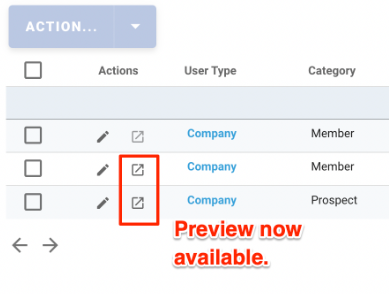
The Draft Invoices will be created, and the 'Preview' icon for these invoices will be activated.
Next Article For Dues Renewals: Adjusting Membership Dues Draft Invoices for Upcoming Dues Renewals