![accrisoft_logo_med.png]](https://help.accrisoft.com/hs-fs/hubfs/accrisoft_logo_med.png?height=50&name=accrisoft_logo_med.png)
The overview steps to do a partial refund are as follows:
Voiding the Existing Invoice
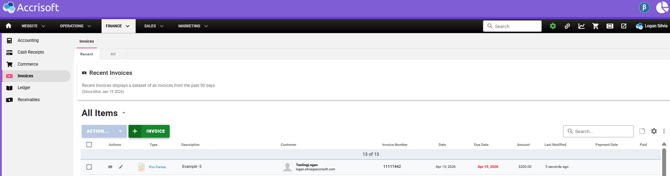
- Find the invoice in the Billing Module and press the edit pencil button next to the invoice you want to refund
- Press the blue Action button towards the top right and select Void Invoice
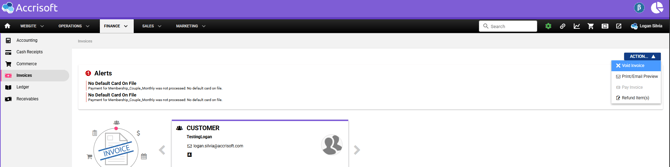
- Voiding the Invoice will create a Credit Memo on the next screen. Scroll to the bottom and press the Save button
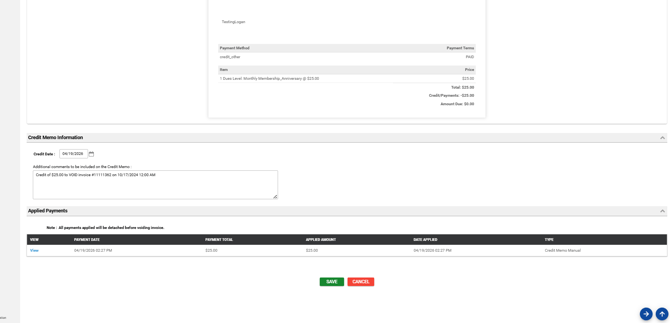
- This will also take the payment originally attached to the Invoice, and make it an "Unapplied Payment", that will be available to be attached to other other/newer Invoices.
Adding a new Invoice for the corrected amount (specific for Event invoice changes) :
- Add a new Invoice from the Billing module Or adjust the order in the Events module:
- by editing the original order and add/delete attendees
- Then press the blue Action button dropdown and select Create Invoice
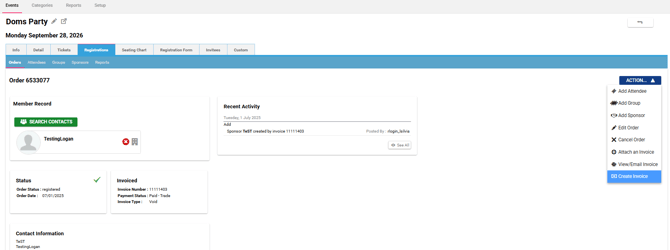
- Go through the Create Invoice stepper and press Finish
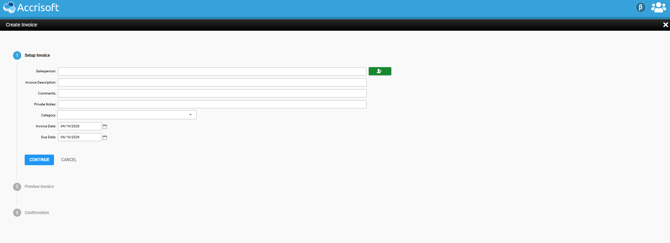
- Find the newly created Invoice Pro Forma in the Billing module and press the edit icon
- Scroll to the bottom and press the green Save button, drop-down, and select "and post."
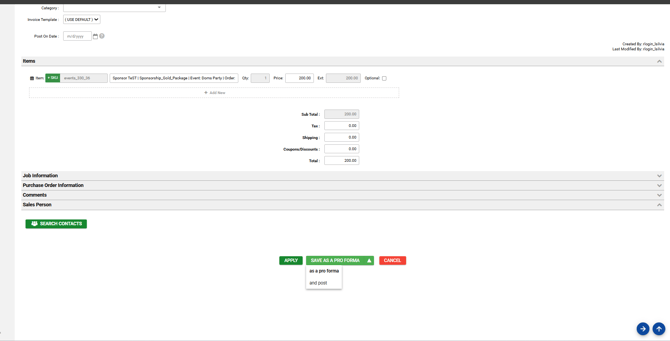
- This will post the invoice and get it ready to accept payment
Refunding a remaining Unapplied Payment to a Credit Card
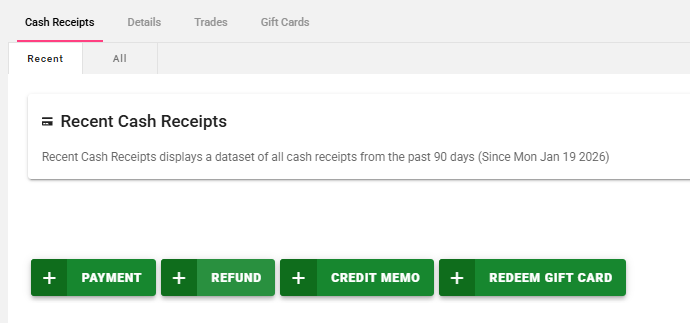
- Go to the Cash Receipts Module
- Press the green +Refund button
- Press the green Search Contacts button and select the customer that has an unapplied payment
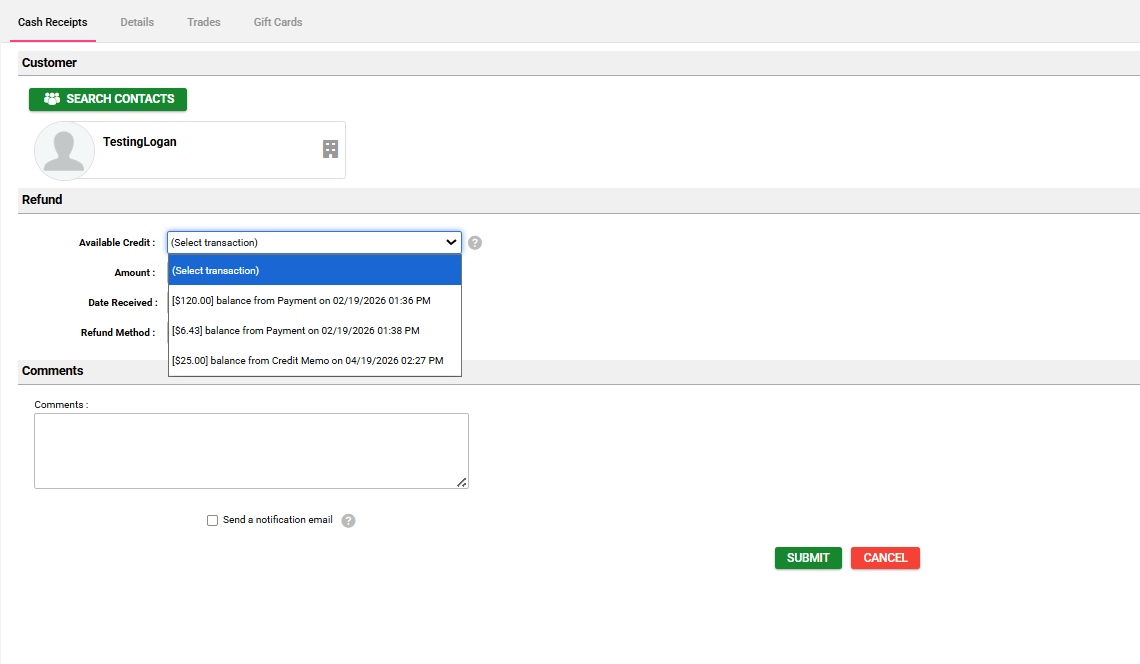
- Press the Available Credit dropdown and select the balance left from an unapplied payment
- The amount will auto-fill with what is remaining
- Select the Refund Method dropdown and choose Refund Credit Card
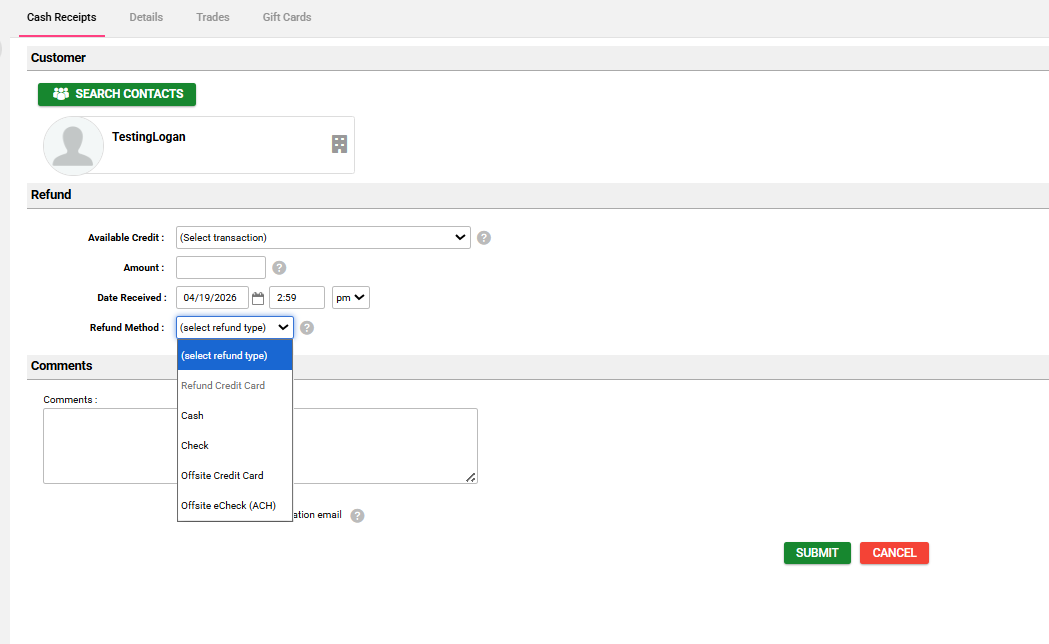
- Press the green Submit button to complete the refund
- The refund should show up in the customer's account within 72 hours