![accrisoft_logo_med.png]](https://help.accrisoft.com/hs-fs/hubfs/accrisoft_logo_med.png?height=50&name=accrisoft_logo_med.png)
Warning: Your export file does not include contact passwords or stored payment information. Do not treat it as a full backup of your contact database. If the intention is to clean the database of unwanted records you will need to do so manually by atticing the unwanted records in the hypertable view of the contact database.
See our import article before doing so.
Sometimes, you may want to export all of your contact database records, to back up the data, or to work on it as a spreadsheet.
You can export the Contact Database in two ways:
- Through a Report View table in the Contact Database Module
- Recommended for exporting partial data
- Through the Data Manager Module > Export tab
- Recommended for exporting a backup of all data
Exporting the Contact Database through a Report View table in the Contact Database Module
- Go to the Contact Database Module
- Click on the Table Settings gear icon towards the top right of the list

- Check the boxes next to the fields that you would like to export to a csv
- Selecting all fields may take some time to load, depending on how much data is in your Contacts
- Click on the Filters tab and make sure they are set to what data you would like to see
- Press Save Settings towards the bottom of the Table Settings window
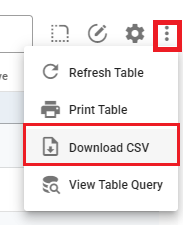
- Press the three dots icon next to the Table Settings gear icon and select Download CSV
Exporting the Contact Database through the Data Manager Module > Export tab
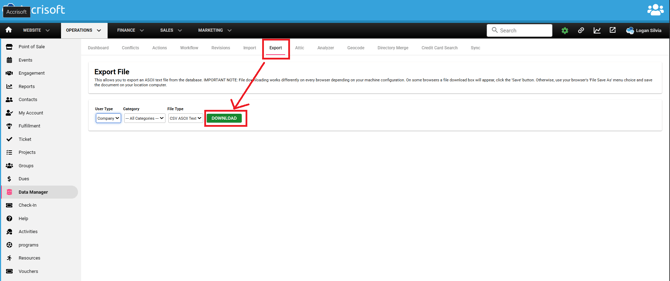
- Go to the Data Manager Module
- Click on the Export tab towards the top
- Press the green Download button
This may take some time to download, depending on how much data is in your Contacts