![accrisoft_logo_med.png]](https://help.accrisoft.com/hs-fs/hubfs/accrisoft_logo_med.png?height=50&name=accrisoft_logo_med.png)
There may be instances when an invoice needs to be satisfied with a Manual Credit Memo. For example, a partially paid Posted invoice can can have the remaining balance paid by a partial Manual Credit Memo, or the full amount of an unpaid Posted invoice can be reduced to $0.00 with a Manual Credit Memo in full amount
To begin, located the invoice to apply the Credit Memo to.
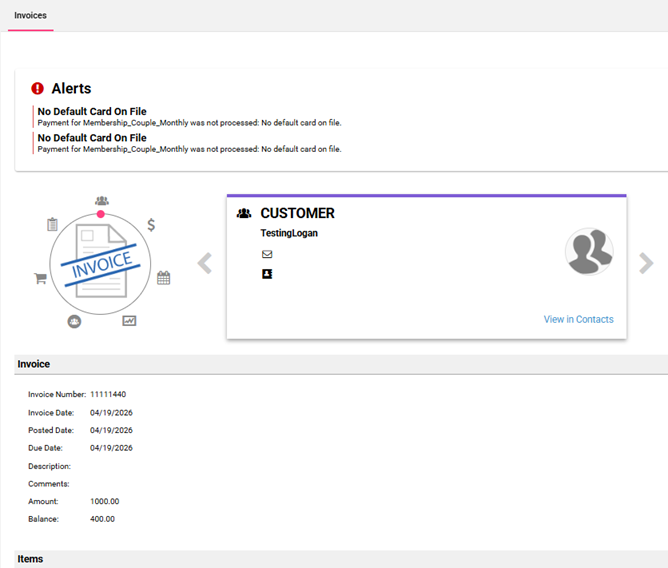
Go to the Finance Application and click on the Invoices Module. Under the Invoices tab, identify the invoice you need to work on.
Make note of the Customer and Invoice Number.
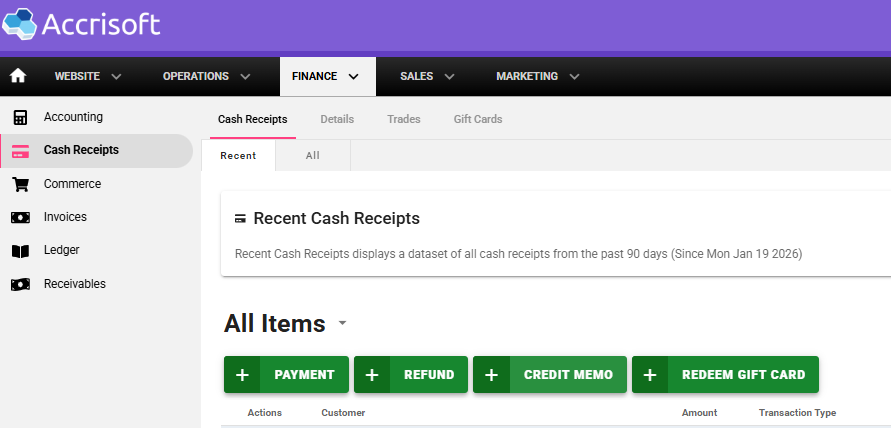
Navigate to the Cash Receipts (Payments) Module and click the green '+ Credit Memo' button to create a new Manual Credit Memo.
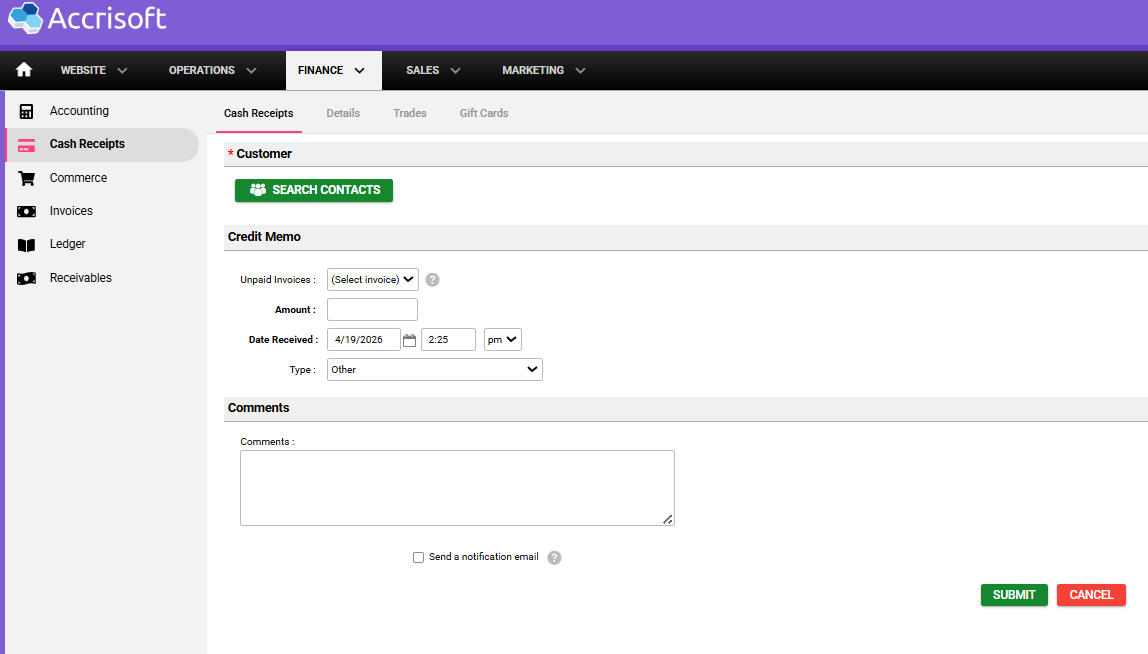
On the page that opens, select the customer that contains the Invoice we want to pay. Click on the green 'Search Contacts' button and search for the name.
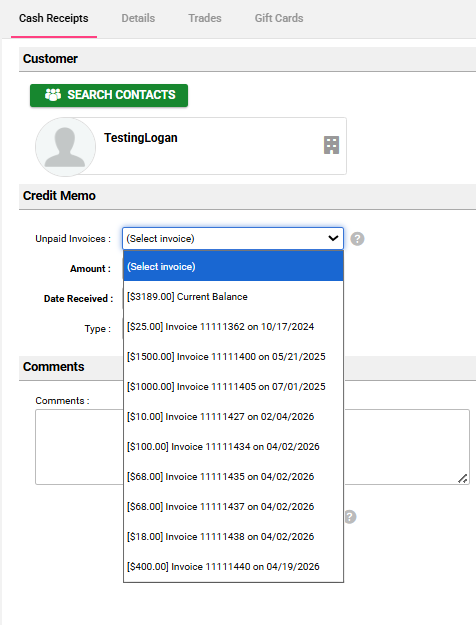
From the Unpaid Invoices menu, select the invoice to apply the Credit Memo to.
Verify the Amount, Date Received and Type.
The Amount can be the full amount of the invoice or a partial amount.
Add a comment so the reason for the Credit Memo is understood in the future.
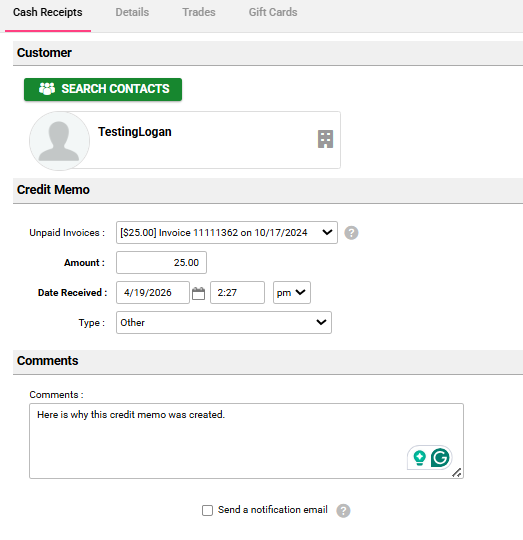
Click the green 'Submit' button to create the Manual Credit Memo.
The changes will be made to the Invoice, and the Credit Memo payment will be applied.
The Transaction History will indicate the Date and amount of the Credit Memo applied.
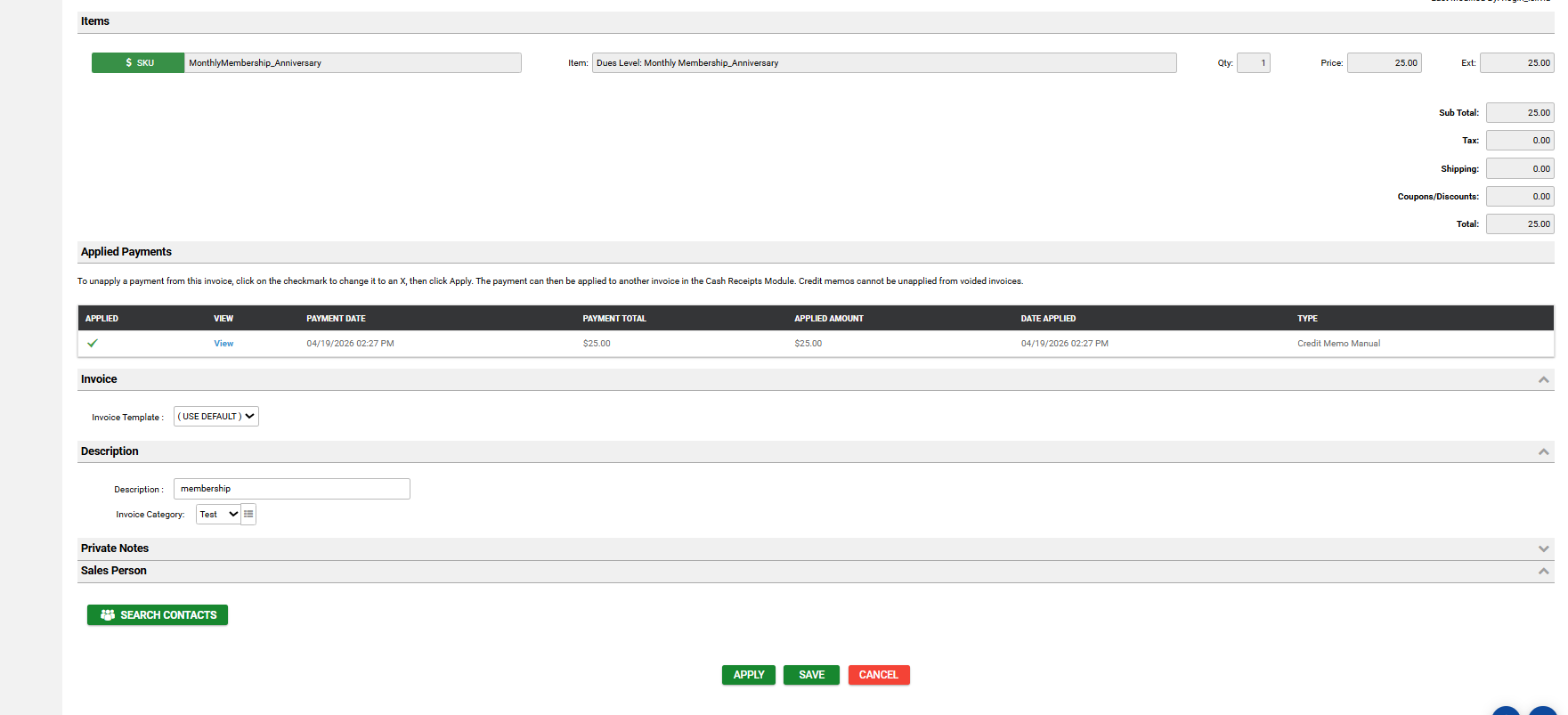
Looking at the Invoice Details, you can see in the Applied Payments section that the Invoice was satisfied by a Manual Credit Memo.
