![accrisoft_logo_med.png]](https://help.accrisoft.com/hs-fs/hubfs/accrisoft_logo_med.png?height=50&name=accrisoft_logo_med.png)
In the Contact Database, the optional 'Files' tab can be enabled to allow for the upload of documents to be associated with a particular contact's record. With the Files tab active, you can store documents like images, PDFs, or text files with a person's details.
In this article
- Viewing an uploaded file
- Uploading a new file
- Encrypting an uploaded file
- Decrypting an uploaded file
- Deleting a file
- Related articles
Supported file types: .jpg .jpeg .gif .png .ppt .pps .doc .xls .txt .pdf .zip .xlsx .docx .pptx
Navigate to the Operations application and click on the Contact Database module. Select a contact record and click on the Files tab.

Once the Files tab opens, you will see a list of files uploaded to that contact's record.
Viewing an uploaded file
To view an uploaded file, click on the blue file name link. The file will open in a new window.
Uploading a new file
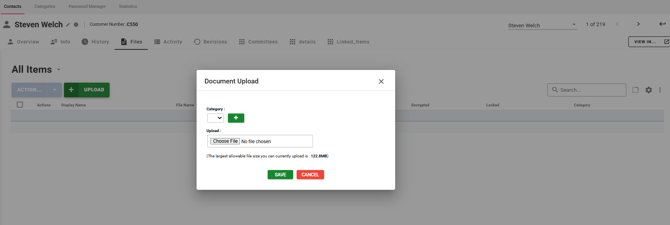
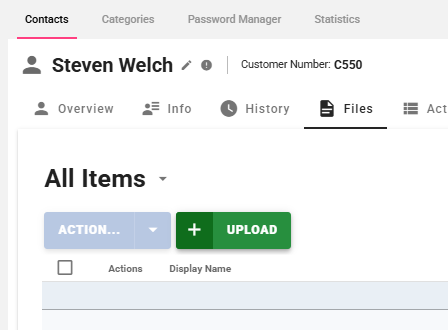
- Click the green + Upload button.
- In the Document Upload window, select the category for the file.
- Click the green + button to add a new category if needed.
- Click Choose File and select the file from your computer.
- Click the green Save button to complete the upload.
Once uploaded, the new file will appear in the list.
Encrypting an uploaded file
- Check the box next to the file you want to encrypt.
- Click the blue Action... menu and select Encrypt.
- Enter and confirm a passcode, then click Encrypt.
An encrypted file will display a lock icon in the file list.
Decrypting an uploaded file
- Check the box next to the file you want to decrypt.
- Click the blue Action... menu and select Decrypt.
- Enter the passcode and click Decrypt.
Deleting a file
- Check the box next to the file you want to delete.
- Click the blue Action... menu and select Delete.
- Click Confirm in the confirmation window.