![accrisoft_logo_med.png]](https://help.accrisoft.com/hs-fs/hubfs/accrisoft_logo_med.png?height=50&name=accrisoft_logo_med.png)
Freedom includes a built-in image tool that handles resizing for you. Rather than worrying about the exact size of an image before uploading it, simply use the Insert/Edit Image button in the editor and choose the display size that fits your content. The main thing to keep in mind is to avoid uploading very large image files, since images that are copy-pasted directly into the editor or inserted at full size can slow down your page.
Best Practices Before You Start
- Keep file sizes reasonable: Images do not need to be a specific size before uploading, but try to avoid files larger than 3–4 MB. If your image is very large, there are free tools available online that can compress it before uploading.
- Use the Insert/Edit Image button: Always insert images using the toolbar button in the editor. Avoid copy-pasting images directly into the editor, as this skips the resizing step and can insert a very large image onto your page.
- Pick a named size: When inserting an image, choose Small, Medium, or Large based on how it will appear on the page. Only use Original if you specifically need the full-size file, such as for a downloadable image.
What the Size Options Do
When you upload an image, Freedom automatically creates several smaller versions of it behind the scenes. When you insert an image and pick a size, Freedom uses the matching version. This keeps your pages loading quickly without any extra steps on your end.
| Size Option | Best Used For |
|---|---|
| Original | Full-size images; avoid for standard page content |
| Thumb | Small icons, profile photos, or compact grid images |
| Small | Images alongside text, such as in news articles or sidebars |
| Medium | General body content images |
| Large | Featured or prominent images within a content area |
Inserting an Image in Web Pages
- Go to Web Pages and open the page you want to edit.
- Click inside the Body editor where you want the image to appear.
- Click the Insert/Edit Image button in the editor toolbar.

- Select your image from the File Manager.
- Choose a size: Thumb, Small, Medium, Large, or Original.
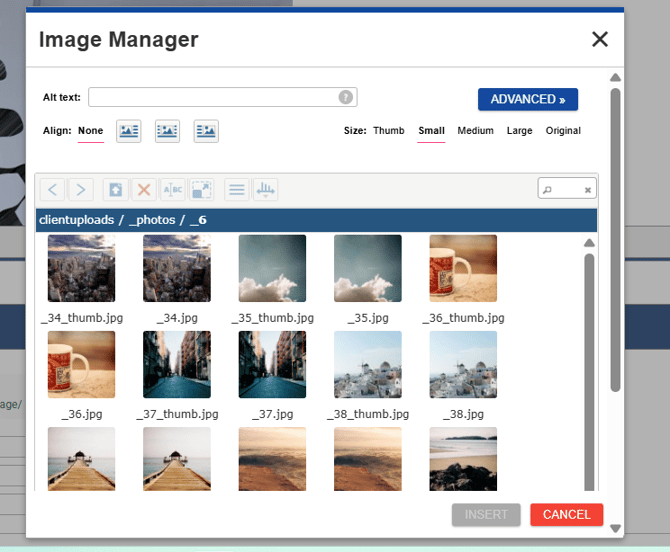
- Click Insert, then save the page.
Inserting an Image in Pages (Components)
The Pages module is built with components. If a component has a text or body editor field, you can insert images the same way as in Web Pages.
- Go to Pages and open the page you want to edit.
- Find the component with the text editor where you want to add an image.
- Click inside the editor field and position your cursor at the insertion point.
- Click the Insert/Edit Image button in the toolbar.
- Select your image from the File Manager and choose a size.
- Click Insert, then save the component and publish the page.
Note: Some components, such as Image, Banner, or Slider, have their own dedicated image fields and do not use the toolbar button. The steps above apply only to components that include a text or body editor.
Troubleshooting
- Image is not displaying correctly: If you inserted an image by copy-pasting it into the editor, remove it and re-insert it using the Insert/Edit Image button to ensure the correct size is applied.
- Image appears broken: This can happen if the image was uploaded before the resizer was set up. Try re-uploading the file and inserting it again.
- Page is loading slowly: Check whether any images on the page were inserted at the Original size or pasted directly. Re-insert them using a named size such as Medium or Large.